
The prompt
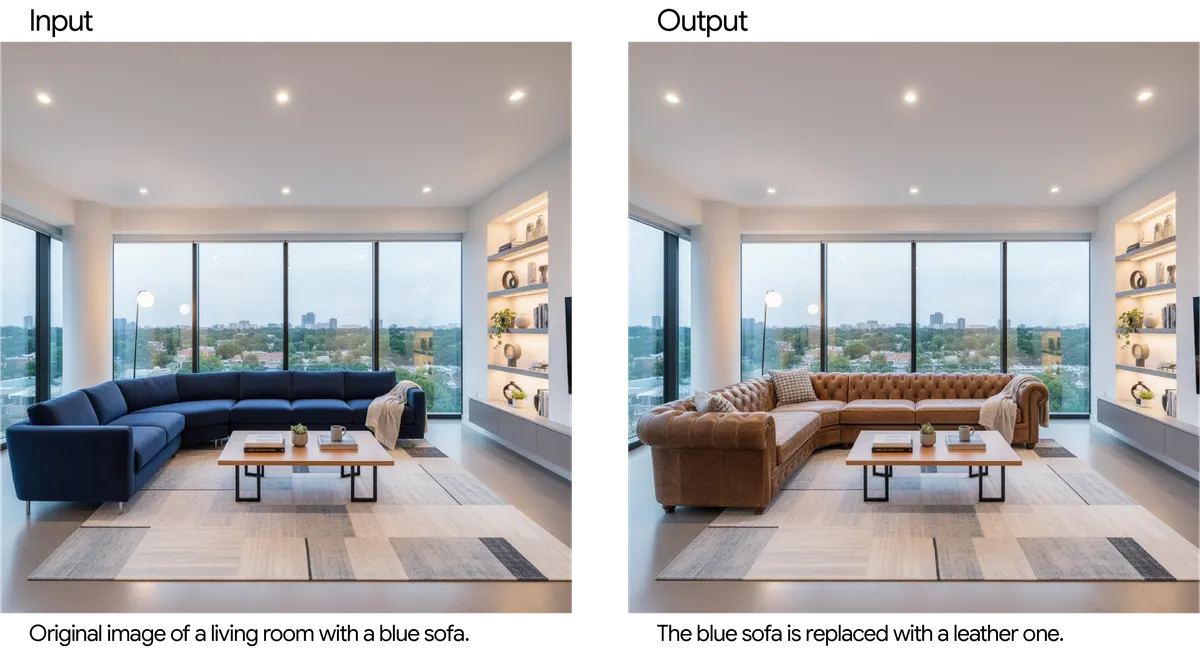
Using the provided image of a living room, change only the blue sofa to be a vintage, brown leather chesterfield sofa. Keep the rest of the room, including the pillows on the sofa and the lighting, unchanged.What it is
This is an image-editing prompt for Gemini. You give it an existing image and ask it to change only one named object into a described replacement. The prompt then explicitly lists the elements that must stay unchanged, such as nearby items and the lighting. The source example turns a blue sofa in a living room into a vintage, brown leather chesterfield sofa.
Who it's for
- Designers and decorators who want to preview a single furniture or decor change in an existing photo
- Marketers and content creators who need to alter one element of an image without regenerating the whole scene
- Anyone learning how to write precise, scoped image-edit prompts for Gemini
Requirements
Requirements
- An image to provide to the model along with the prompt
- Access to a Gemini image generation/editing capability that accepts an image as input
- A clear name for the object to change and a specific description of what it should become
- A short list of elements that must remain unchanged
Examples
Original: sofa swap
PromptUsing the provided image of a living room, change only the blue sofa to be a vintage, brown leather chesterfield sofa. Keep the rest of the room, including the pillows on the sofa and the lighting, unchanged.Expected output: The returned image should show the same living room with the blue sofa replaced by a brown leather chesterfield, with the pillows and lighting left as they were.
Kitchen: change the stools
PromptUsing the provided image of a modern kitchen, change only the black plastic bar stools to be natural oak wooden stools with round seats. Keep the rest of the kitchen, including the countertop, the pendant lights and the window light, unchanged.Expected output: The kitchen should look the same, but the bar stools should now be oak with round seats.
Street scene: change the car
PromptUsing the provided image of a city street at dusk, change only the red hatchback parked on the left to be a vintage cream-colored convertible. Keep the rest of the street, including the buildings, the other vehicles and the lighting, unchanged.Expected output: Only the parked car on the left should be replaced by a cream convertible, with the rest of the street scene preserved.
Pros & cons
Pros
- Pro:Scopes the edit to one object with the 'change only' wording
- Pro:Explicitly lists what must stay unchanged, such as pillows and lighting
- Pro:Short, single-sentence structure that is easy to reuse by swapping the scene, object and replacement
- Pro:Works from an existing image instead of requiring a new scene to be generated
Cons
- Con:Requires you to supply a source image
- Con:Targets one object per prompt, so several changes would need separate edits
- Con:The source gives only one example and no documented guarantee that unlisted elements remain unchanged
- Con:Results depend on how clearly the object and replacement are described
Images
Tips
- Identify the object by a distinguishing detail like color so the right item is targeted
- Use specific descriptive terms for the replacement, as in 'vintage, brown leather chesterfield'
- Name the elements closest to the changed object that you want preserved, such as items on or around it
- Keep 'change only' and 'unchanged' wording in the prompt to reinforce the narrow scope
Variations
- Swap the object type, e.g. replace a lamp, rug or chair instead of a sofa
- Change the scene type, such as a kitchen, office or street, while keeping the same structure
- Adjust the preservation list to protect different elements like the background, the lighting or nearby objects
Related
 Prompt
 Flux: Candy Robot Celebration
Fun descriptive prompt from the official Flux docs examples.
Prompt Stable Diffusion XL: Astronaut on a Green Horse
The official SDXL example prompt, a quick test of composition.
Prompt Midjourney Prompt Generator
Makes a chat model write rich, imaginative descriptive prompts for Midjourney.
Prompt Compare options
Compare [option A], [option B] and [option C] for [use case] in a table: cost, ease of use, strengths, weaknesses, best for. Then recommend one.
Prompt Flat illustration
Flat vector illustration of [scene], limited palette of 4 colors, clean shapes, generous negative space, no text.
Prompt Instagram caption pack
Write 5 Instagram captions for a post about [topic]. Vary the tone (fun, inspiring, informative), add 1 emoji each, and 5 relevant hashtags.